Rumpel Video Maker · Product walkthrough
How to make a Bulin 47 AI video from your photo
Last updated: 2026-10-12
To make a Bulin 47 AI video, open the generator, choose a clear portrait, sign in and select Generate video. Use a video credit or purchase a package when prompted. Once the task completes, play the result with sound and download your MP4. You do not need to record yourself rapping or write a prompt.
This guide follows the current website controls. The public example shows a fictional adult portrait used to personalize the lead performer in the pale pink shirt. It demonstrates one result; your photo can produce different facial details. Watch the original and generated comparison before choosing a portrait.
1. Choose a photo that shows the whole head
Select Choose a portrait. Use JPG, PNG or WebP, up to 10 MB. Pick a photo of one adult who has agreed to appear. The face should be sharp, evenly lit and large enough to inspect, with the hairline and chin inside the image.
A head-and-shoulders portrait is a practical starting point. A tiny face in a group shot makes the intended person ambiguous; sunglasses, a hand over the mouth or a tightly cropped forehead remove useful detail. Choose a different existing photo when those features are obscured. Enlarging a blurry image does not recover the missing facial information.
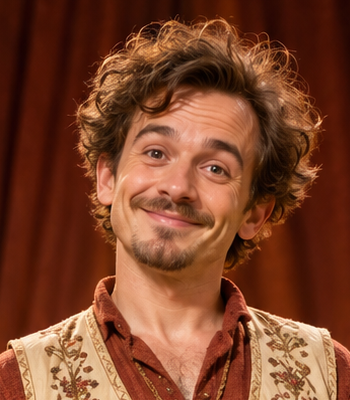
The existing demonstration portrait has a visible face, hairline and chin. Use it to understand the framing; the subject in your own photo supplies your personal appearance.
After selection, inspect the thumbnail. Remove portrait lets you replace the picture before starting. The draft is saved in this browser for up to 24 hours. Keeping the same browser is useful when you move through login and checkout; a draft is not a cross-device photo library.
2. Sign in and check the restored portrait
Select Sign in to continue, then sign in or create your account. The return link brings you back to the Bulin tool. Check that your portrait is still displayed before proceeding. If you changed browsers or cleared local storage, choose the photo again.
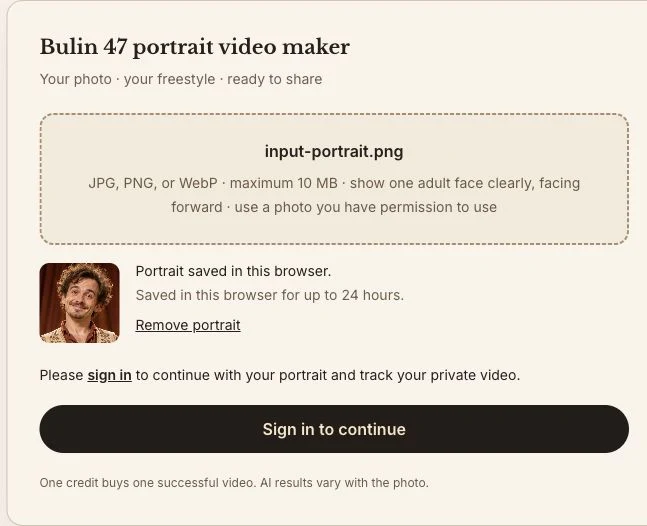
Photo selection comes before sign-in. The selected thumbnail identifies the portrait that will continue into your creation.
Your account keeps the task private and tracks your remaining video credits. Credits are shared with the Rumpelstiltskin tool, so an existing balance can be used here too. You do not need to buy another package solely because you switched templates.
3. Generate with a credit or buy a package
Select Generate video or Continue generation, whichever the tool displays. With an available credit, this starts the creation request. If your balance is insufficient, the package dialog explains the available purchases. Review the current one-time prices, choose a package and complete checkout.
When checkout returns to the saved creation, keep the tab open during Confirming your payment. After payment and the available credit are confirmed, the saved request starts automatically. Avoid starting a second request while this confirmation is running. If continuation expires or cannot start, follow the message shown in the tool.
Buying from the separate Pricing page adds account credits; it does not select a photo for you. Return to the generator, choose your portrait and start the video when you are ready.
4. Wait, then inspect the whole performance
During upload, queueing and generation, the tool locks photo changes and repeated submissions. Check Latest job for the current state. A payment receipt confirms the purchase; the completed video appears separately after processing.
Play the result with sound from beginning to end. Check the lead performer's face as the head turns, the hair around the forehead and the mouth during the rap. Look at the surrounding scene as well: the reference performance guides the result, but AI can alter fine details. A completed result is not a promise of identical facial likeness in every frame.
The current output specification is listed on the Bulin tool page. Use that specification and the comparison to decide whether this template suits your intended post. The tool does not offer separate controls for a new outfit, different crowd or replacement backing track.
5. Download and prepare your post
Select Download video on the completed task and save the MP4. Downloads are available for seven days, so keep your own copy rather than relying on the task link for permanent storage. Open the saved file locally to check that both picture and sound play.
Add your caption in the app where you plan to post. A short setup such as a group-chat introduction can explain the joke without covering the performer's face. Preview the crop in the posting app before publishing; its interface can cover the lower part of the frame.
If the next step does not appear
- The portrait is missing: use the same browser and account, then reselect the image if the local draft has expired.
- Payment succeeded but creation has not begun: let confirmation finish, check the balance and read the displayed recovery message. Check My videos before trying again.
- The job says failed: its reserved credit returns. Read the error before retrying; repeating an unsuitable photo does not improve it.
- The job completed but the face looks wrong: compare your input's sharpness and framing with the example. A quality concern differs from a failed task. Contact support with the task ID for help.
For unresolved billing or task issues, use support with the order or task ID and the message you saw. Do not send passwords or payment-card details. The refund policy explains payment refunds separately from returned generation credits.
For the barn dance instead, follow the Rumpelstiltskin video tutorial.
Sources and editorial notes
- Bulin 47 generator and public comparison sample
- Shared video credit packages
- Upload processing and retention policy
Prepared by Rumpel Video Maker. This walkthrough follows our current tool controls and published sample. Screenshots show photo selection; they do not represent a new paid generation. Linked service pages explain pricing and processing. Read our editorial approach or send a correction.
Questions answered
How do I make a Bulin 47 AI video without recording myself?
Open the Bulin 47 generator, choose one clear portrait, sign in and select Generate video. The template supplies the freestyle performance and soundtrack. Use an existing credit or buy a package when prompted, then preview and download the completed video.
Can I make a Bulin 47 AI video for free?
The public Bulin 47 comparison sample is free to watch without an upload. A personalized video requires a paid credit. Selecting a portrait does not generate a free personalized preview. Check the current packages on the Pricing page before purchasing.
Why has my Bulin 47 video not started after payment?
Keep the return tab open while it confirms payment and refreshes your credit balance. If automatic continuation cannot start, follow the displayed message and select Generate video when ready. Check Latest job or My videos before submitting again.
Can I change the Bulin 47 backing track?
The Bulin 47 generator uses its template soundtrack. There is no song-upload or voice-cloning control in this workflow. Listen to the public comparison before purchasing to decide whether its performance and audio fit the video you want.