Rumpel Video Maker · Product walkthrough
How to make a Rumpelstiltskin AI video with your photo
Last updated: 2026-10-12
To make a Rumpelstiltskin AI video, choose your portrait in the dance maker, sign in and select Generate video. The template supplies the barn scene, performance and soundtrack. Your picture personalizes the main character's head. Use a purchased video credit, then preview and download the finished MP4.
This walkthrough covers the current fixed-template tool. If you came to identify the film or song, the dance meme explainer follows that source trail. Purchasing a personal video does not provide the full 1987 film; viewing options have their own guide.
1. Match the template to the video you want
Watch the paired sample on the video maker homepage, including its sound. Compare the reference side with the personalized result. The recognizable joke comes from the setting, facial performance, raised-finger gesture and tiptoe movement. This is the template you are choosing, rather than an open-ended request for a new dance.
The workflow personalizes the lead character's head and hair. The scene and outfit come from the reference. Expression, facial hair and clothing details can still vary in the generated result. If you want new choreography or a costume selector, those controls are not part of this form.
Start by judging whether the published result is the kind of edit you want. The sample is free to view and uses an example portrait; it is not a free personal video generated when you select your own photo.
2. Choose a clear portrait for the head replacement
Select Choose a portrait. Use a JPG, PNG or WebP image up to 10 MB, showing one consenting adult. Include the full face, hairline and chin, with a small margin around the head. A sharp head-and-shoulders portrait is more useful than a distant full-body shot with a tiny face.
Check three details before continuing:
- Eyes and mouth: both should be visible, without dark glasses or an object across the face.
- Head outline: avoid cropping off the forehead or chin. Those edges help establish the appearance you intend.
- Light and detail: choose an evenly lit picture without heavy beauty filters, motion blur or deep shadows across half the face.
You do not need to reproduce the dance pose in the photo. The template supplies the body movement. After choosing the file, inspect the thumbnail; Remove portrait lets you select a different image before starting.
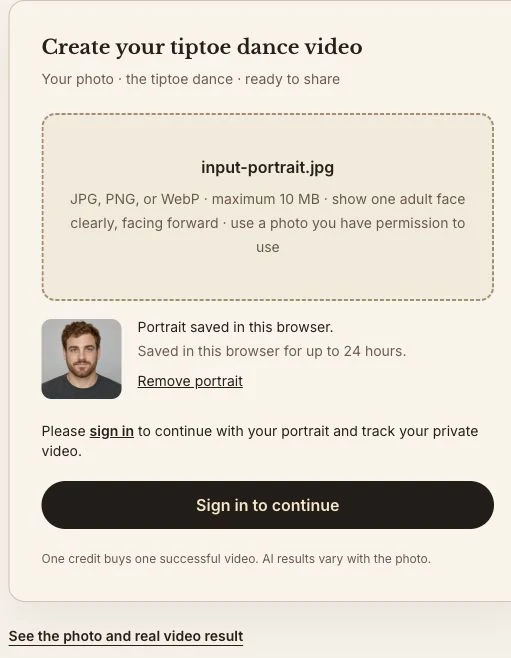
Check the selected photo before sign-in. The current interface keeps the portrait draft in this browser for up to 24 hours.
3. Sign in, then start your creation
Select Sign in to continue and finish signing in or registering. Return to the generator and check the restored portrait. The browser draft lets you continue the same creation through sign-in; switching devices, clearing storage or waiting beyond the draft period may require choosing the photo again.
Your remaining video credits appear in the tool. Select Generate video or Continue generation to proceed. One credit covers one successful video. If your account already has credits, including credits bought for Bulin 47, you can use them here.
If your balance is insufficient, a package dialog appears. Review the one-time video packages and complete checkout. There is no need to buy a separate Rumpelstiltskin subscription. Buying credits directly on the Pricing page also works; return to the tool and start a creation when ready.
4. Continue after payment and watch the task state
When you buy from a saved creation, checkout returns to that tool. Keep the tab open during Confirming your payment. Once payment and the available credit are confirmed, the saved creation starts automatically. Do not submit another video while this confirmation is still running.
If the tool says automatic continuation could not start, check your portrait and balance, then follow the displayed instruction to generate. Look at Latest job or My videos first to avoid submitting a second creation when the first already exists.
The interface shows upload, queueing and generation states and locks changes while a task is active. There is no fixed completion-time promise. A paid order and a completed video are separate states; wait for the result rather than treating the checkout receipt as a download link.
5. Inspect the motion, then download
Play the completed video from beginning to end with sound. Check the head as it turns, the face during the raised-finger gesture and the transition into the tiptoe movement. A still image can look convincing while a later frame exposes a difference, so inspect the whole clip before sharing.
Select Download video and save the MP4 within seven days. Open the downloaded file once to verify picture and sound. The task link is for temporary access; your saved copy is what you should keep or import into a social app.
Add a short caption that supplies your own context, such as a quiet celebration or an entrance joke. Check the posting app's crop and text overlays so they do not hide the face or the movement you wanted to share.
Troubleshoot without repeatedly buying or submitting
Photo missing after sign-in: return in the same browser and account. If the draft is absent or expired, choose the portrait again before generating.
Payment completed, but no video is visible: check the payment-confirmation message and account balance. Open My videos to check for an existing task. If the purchase remains unresolved, contact support with the order ID instead of immediately buying another package.
Task failed: a failed generation returns its reserved credit. Read the error and address the cause before retrying. A completed clip with an unwanted facial detail is a quality concern, not automatically a failed task or a payment refund.
For help, send the order or task ID and displayed message through Contact. See the refund policy for billing questions and the privacy policy for uploaded-image processing. For the street freestyle template, use the separate Bulin 47 creation tutorial.
Sources and editorial notes
- Rumpelstiltskin tool and published comparison
- Meme origin and soundtrack source trail
- Shared video credits and failure handling
Prepared by Rumpel Video Maker. This walkthrough follows our current tool controls and published sample. Screenshots show photo selection; they do not represent a new paid generation. Linked service pages explain pricing and processing. Read our editorial approach or send a correction.
Questions answered
How do I make the Rumpelstiltskin AI dance with my own photo?
Choose a clear adult portrait in the Rumpelstiltskin video maker, sign in and select Generate video. Use an existing video credit or purchase one when prompted. The fixed template supplies the barn scene, dance and soundtrack; preview the completed task and download your video.
Do I need a full-body photo for the Rumpelstiltskin dance?
Use a clear portrait that includes the face, hairline and chin. The current Rumpelstiltskin workflow personalizes the main character’s head; the dance and outfit come from the template. You do not need to photograph yourself performing the movement.
Can I upload a different dance or song?
This Rumpelstiltskin tool uses a fixed dance template and soundtrack. It accepts a portrait, with no custom choreography, song upload or text-prompt controls. Watch the public example to check the included scene and audio before purchasing a generation.
Where do I download my Rumpelstiltskin video?
Open the completed private task and select Download video. You can also find your tasks through My videos while signed in to the same account. Result downloads are available for seven days, so save the MP4 and keep your own copy.